
Position and size
A node has a position and a size in design pixels, measured from its parent. This page shows how to size a node from its parent, which point of a node its position names, which node is drawn on top, and how to hide, disable or copy a node.
You will learn
- How to size and place a node from its parent
- How to keep the center or a side of a node in place
- How to take a node out of the positions of its parent
- How to choose what is drawn on top
- How to hide, disable and copy a node
Size a node from its parent
Section titled “Size a node from its parent”The lambda of body receives the parent, already sized, so its children can use its size:
RectNode.create(560, 290, 800, 500).color(PanelUI.SURFACE).effect(RoundedNodeEffect.create(12F)).effect(BorderNodeEffect.create(PanelUI.ELEMENT, 1.5F)).body(panel -> { RectNode.create(20, 20, panel.getWidth() - 40D, 60).color(PanelUI.ACCENT).attach(panel); RectNode.create(panel.dw(2D) - 150D, panel.ah(-100D), 300, 60).color(PanelUI.ELEMENT).attach(panel);}).attach(this);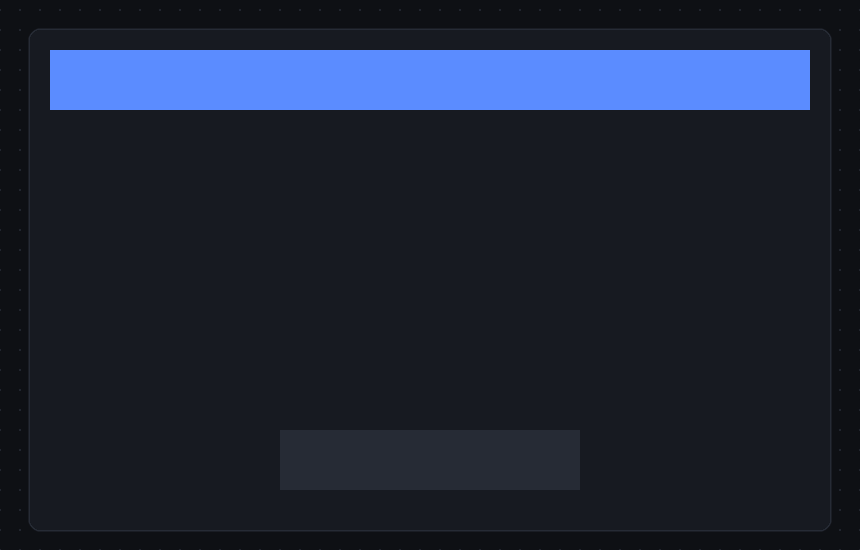
init() runs.
A node has shortcuts for these computations: Node.w and Node.h return its width and height, dw(n) and dh(n) divide them by n, mw(n) and mh(n) multiply them, aw(n) and ah(n) add n, and ax(n) and ay(n) add n to its position.
These values are read once, when the child is created. To follow a parent whose size changes, give the setter a lambda:
final RectNode bar = RectNode.create(560, 820, 400, 40).color(PanelUI.ELEMENT).attach(this);RectNode.create(0, 0, 0, 40).color(PanelUI.ACCENT).width(() -> bar.getWidth() / 2D).attach(bar);Signals explains when JOID computes such a lambda again.
Node.x(double), Node.y(double), Node.width(double) and Node.height(double) set each value; Node.move changes the position the way a drag does, so beforeMove listeners can refuse it (Drag and drop).
Node.aspectRatio(double) keeps the width and the height in a ratio: the height follows the width, or the width follows the height when the width is 0.
RectNode.create(1000, 820, 160, 0).color(PanelUI.ACCENT).aspectRatio(16D / 9D).attach(this);aspectRatio brings the height along with the width.
Keep a point of a node in place
Section titled “Keep a point of a node in place”The position of a node names its top-left corner by default.
Node.anchorX(Align) and Node.anchorY(Align) make it name the center or the other side instead, and Node.anchor(Align) sets both:
RectNode.create(300, 60, 160, 80).color(AnchorUI.ELEMENT).anchorX(Align.START).attach(card);RectNode.create(300, 160, 160, 80).color(AnchorUI.ACCENT).anchorX(Align.CENTER).attach(card);RectNode.create(300, 260, 160, 80).color(AnchorUI.ELEMENT).anchorX(Align.END).attach(card);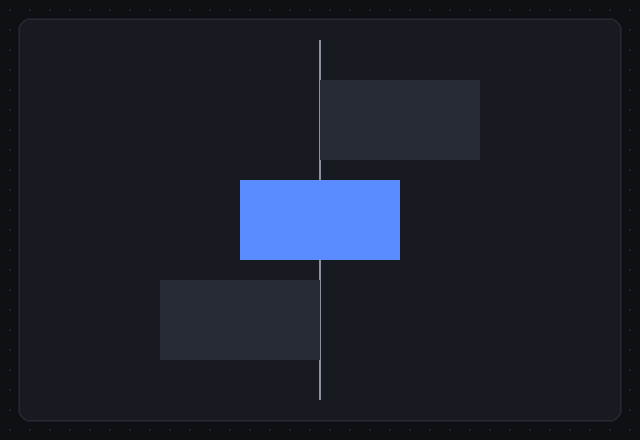
When the size of an anchored node changes, the anchored point stays where it is: a node anchored at its center grows on both sides.
Align CENTER on both axes centers a node on its position, the usual way to center a text.
getX() and getY() return the top-left corner where the node is drawn, after its anchor and its layout; Node.getDefaultX and Node.getDefaultY return the values you set.
Take a node out of its parent’s positions
Section titled “Take a node out of its parent’s positions”Node.position(PositionProperty) with PositionProperty ABSOLUTE places a child on the canvas instead of inside its parent:
RectNode.create(560, 290, 800, 500).body(panel -> RectNode.create(20, 20, 60, 60).color(PanelUI.ELEMENT).position(PositionProperty.ABSOLUTE).attach(panel)).attach(this);The dark grey square sits at (20, 20) on the canvas, not at (20, 20) in the panel. It stays a child: it is drawn, hidden and removed with its parent, but layout nodes skip it and it does not count in the size of their content (Layout).
Choose what is drawn on top
Section titled “Choose what is drawn on top”Siblings are drawn in attach order, the last on top, and the mouse reaches the top one first.
Node.zindex(int) changes that order: a higher value is drawn later, so on top.
RectNode.create(60, 60, 200, 200).color(OrderUI.MUTED).zindex(1).attach(card);RectNode.create(160, 100, 200, 200).color(OrderUI.ACCENT).attach(card);RectNode.create(340, 140, 200, 200).color(OrderUI.ELEMENT).body(front -> RectNode.create(-40, -40, 120, 120).color(OrderUI.MUTED).zindex(-1).attach(front)).attach(card);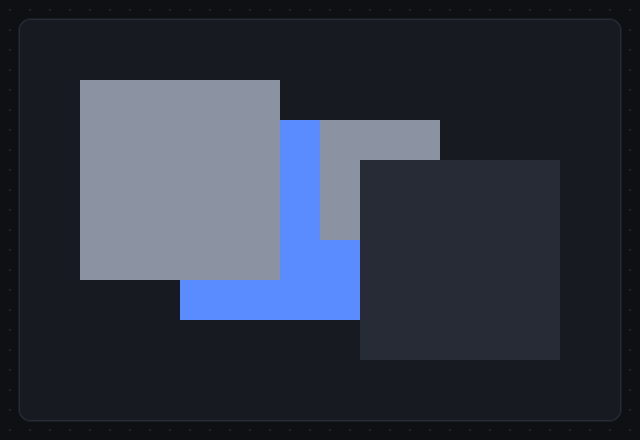
zindex(1) raises the first square above the second; zindex(-1) puts the small square behind its own parent.
The zindex orders a node among its siblings only.
A child with a negative zindex is drawn before its parent, so the parent covers it.
Siblings with the same zindex keep their attach order: attaching a node again brings it to their front (Nodes and the tree).
Node.zlevel(double) moves a node along the depth axis; it matters only when the depth test is on, as with 3D models (3D models).
The order of whole UIs is another zindex, set on the UI (Overlays and popups).
Hide or disable a node
Section titled “Hide or disable a node”shown is a BooleanSignal field of the UI: visible(this.shown) follows it, and the Toggle square toggles it (Signals).
RectNode.create(660, 440, 180, 180).color(HideUI.ACCENT).hoveredColor(HideUI.ACTIVE).visible(this.shown).attach(this);
RectNode.create(870, 440, 180, 180).color(HideUI.ACCENT).hoveredColor(HideUI.ACTIVE).enabled(false).attach(this);
RectNode.create(1080, 440, 180, 180).color(HideUI.MUTED).onClick(event -> this.shown.toggle()).attach(this);Node.visible(boolean)falsehides the node and its children: they are not drawn and receive no input.Node.enabled(boolean)falsekeeps the node and its children drawn, but they receive no input and show no hover.
isVisible() and isEnabled() take the parents into account: a child of a hidden node is hidden.
Events compares both with interactive(false), which lets the pointer through a node.
Copy a node
Section titled “Copy a node”Node.copy returns another node with the same values, children, effects and listeners, ready to attach:
final RectNode tile = RectNode.create(40, 50, 200, 200).color(CopyUI.ELEMENT).body(rect -> CircleNode.create(60, 60, 80).color(CopyUI.ACCENT).attach(rect));tile.attach(card);tile.copy().x(300).attach(card);tile.<RectNode>copy().color(CopyUI.MUTED).x(560).attach(card);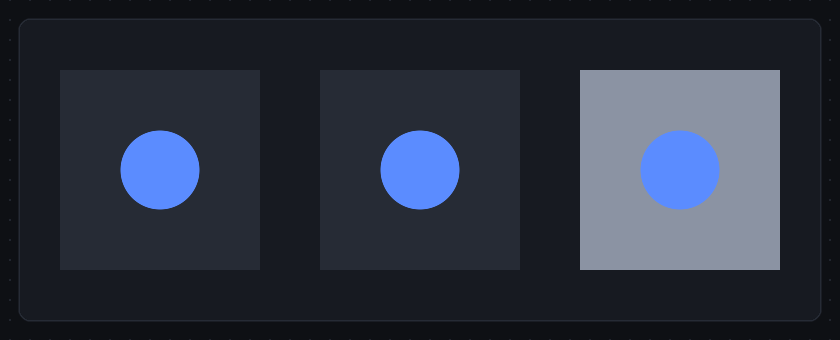
The copy is a snapshot: it keeps the values that the original has at the moment of the copy, and it does not follow the lambdas and signals of the original. It has no parent until you attach it. A node of your own needs a constructor that JOID can call to be copied (Custom nodes).
- Positions and sizes are design pixels from the parent;
bodyhands you the sized parent. - Values read from a parent are read once; a lambda follows them.
- The anchor sets which point of the node its position names, and which point stays when it resizes.
ABSOLUTEplaces a child on the canvas and keeps it out of layouts.- Siblings draw in attach order;
zindexreorders them, and a negative one goes behind the parent. visible(false)hides a branch;enabled(false)keeps it drawn without input.copy()makes a snapshot with the same values, children, effects and listeners.
Try it
Section titled “Try it”Center a square.
Place a 100 × 100 square in the middle of the panel of PanelUI, without computing its top-left corner.
Solution
Anchor it at its center and place it at the center of the panel:
RectNode.create(panel.dw(2D), panel.dh(2D), 100, 100).color(PanelUI.ACCENT).anchor(Align.CENTER).attach(panel);Raise on hover.
Make each square of OrderUI come on top of the others while the mouse is over it.
Solution
A lambda reads the hover state on every frame:
.zindex(() -> node.isHovered() ? 10 : 0)node is the square itself, for example through self(node -> node.zindex(...)).