
Images and media
Icons, photos, animated images, video trailers: everything JOID shows from a file is a resource. This page shows how to load one, draw it, play it when it moves, and which formats JOID reads.
You will learn
- How to show an image from the jar, the disk or the web
- How to fit, tint and crop an image
- How to know when an image is loaded, and share settings between images
- How to play animated images and videos, with their sound, or a texture of your application
- Which formats JOID reads
Show an image
Section titled “Show an image”A Resource is something JOID can draw, made by Resource.of, and a ResourceNode draws it:
final Resource image = Resource.of("images/placeholder.png");ResourceNode.create(40, 40).resource(image).attach(card);ResourceNode.create(400, 40, 160, 0).resource(image).attach(card);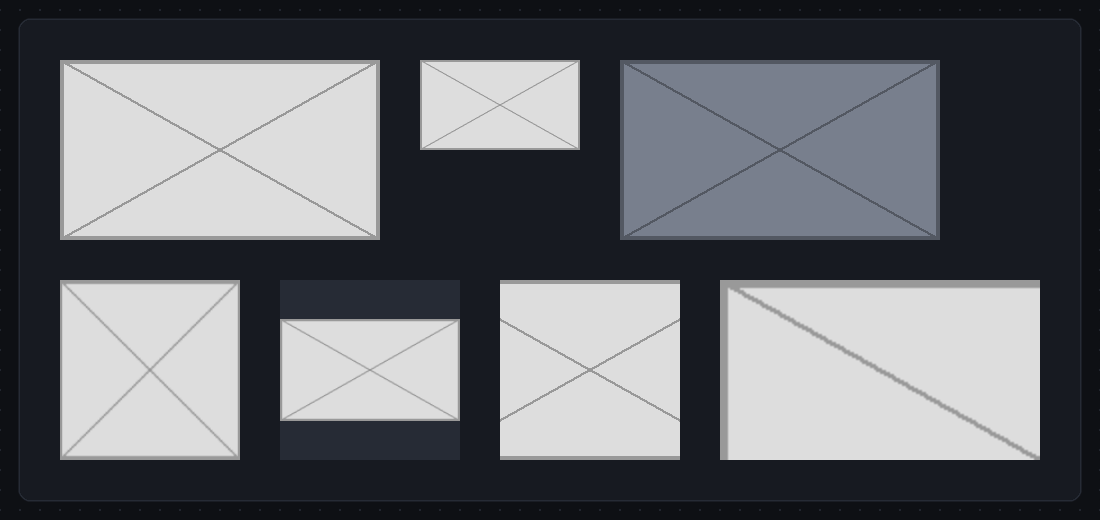
A ResourceNode sizes itself from the image:
- Without a size, or with
0for both, it takes the size of the image, one design pixel per image pixel. - With only a width (the height at
0), such ascreate(400, 40, 160, 0), it computes the height that keeps the proportions of the image; with only a height (the width at0), the width. - With both, it fills that box, as Fit, tint and crop shows.
An image has a fixed number of pixels, while the canvas scales with the window (The design canvas). Give a source as large as the largest window shows it: JOID scales an image down smoothly, but scaling it up blurs it.
Load from the jar, the disk or the web
Section titled “Load from the jar, the disk or the web”Resource.of(...) takes the usual sources:
final Resource icon = Resource.of("images/placeholder.png");final Resource photo = Resource.of(new File("photos/beach.png"));final Resource banner = Resource.of("https://example.com/banner.png");final Resource logo = Resource.of(MediaSources.class.getResourceAsStream("/images/placeholder.png"));final Resource drawn = Resource.of(chart);| Source | What JOID reads |
|---|---|
String without a scheme | A file of the classpath, such as images/placeholder.png in your jar, or else a file of the disk at that path. |
String with a scheme | A URL (https:, file:, jar:). JOID gives up after 10 s without a connection and 30 s without data. |
File | A file of the disk. |
InputStream | The content of the stream, read once. |
BufferedImage | An image that your code builds. |
Two resources of the same path or URL decode it once and share the result. A texture of your own renderer is a source too: Show a texture of your application. To read from a source of your own, such as an archive, write an asset locator (Custom formats).
Fit, tint and crop
Section titled “Fit, tint and crop”ResourceNode.stretch decides how an image fills a box of other proportions, with a value of ResourceNode.StretchType:
ResourceNode.create(40, 260, 180, 180).resource(image).stretch(StretchType.STRETCH).attach(card);ResourceNode.create(260, 260, 180, 180).resource(image).stretch(StretchType.CONTAIN).attach(card);ResourceNode.create(480, 260, 180, 180).resource(image).stretch(StretchType.COVER).attach(card);| Value | Result |
|---|---|
STRETCH | The default: the image fills the box and loses its proportions. |
CONTAIN | The whole image, as large as the box allows, centered; the rest of the box stays empty. |
COVER | The image fills the box and keeps its proportions; what goes beyond the box is cut. |
STRETCH deforms the image; CONTAIN and COVER keep its proportions whatever the shape of the box.
ResourceNode.color tints the image: JOID multiplies each pixel by the Color, so white, the default, keeps the image as it is.
ResourceNode.hoveredColor gives the tint under the mouse, and ResourceNode.hoveredResource another image, with a fade (Hover, tooltips and cursors):
ResourceNode.create(600, 40).resource(image).color(GalleryUI.MUTED).hoveredColor(Color.WHITE).attach(card);Resource.textureCoords crops the image to a region, in image pixels, for a sprite sheet or an atlas:
final Resource corner = Resource.of("images/placeholder.png").textureCoords(0, 0, 160, 90);ResourceNode.create(700, 260, 320, 180).resource(corner).attach(card);The settings of a Resource belong to that Resource object: corner crops, while image, made from the same file, does not.
Resource.nearest keeps the hard edges of pixel art when JOID scales the image, and Resource.linear, the default, smooths them.
An image drawn smaller than its size gets mipmaps, smaller copies that keep it smooth; Resource.mipmap forces them on or off.
ResourceNode.linear chooses the sampling for one node only, whatever the resource says.
Know when an image is loaded
Section titled “Know when an image is loaded”A resource loads the first time a node draws it, in the background.
Until then, the node draws a placeholder in its place (Rebuilding the tree explains this skeleton).
Resource.onLoad and Resource.onError tell your code how the load ends:
final TextNode status = TextNode.create(40, 250).text(Text.create("Loading...", info));final Resource photo = Resource.of(new File("photos/beach.png")).onLoad(resource -> status.text(Text.create(resource.getWidth() + " x " + resource.getHeight(), info))).onError((resource, error) -> status.text(Text.create("Missing photo", info)));ResourceNode.create(40, 40, 320, 180).resource(photo).attach(card);status.attach(card);Without a file at photos/beach.png in the working directory, the status reads Missing photo: onError ran.
Both run on the render thread; added after the resource reached that state, they run at once.
Resource.isLoaded and Resource.isFailed read the state at any time.
A resource that cannot be read takes 64 × 64 design pixels in a node without a size; it draws a magenta and black checkerboard with the dev jar, and nothing with the prod jar.
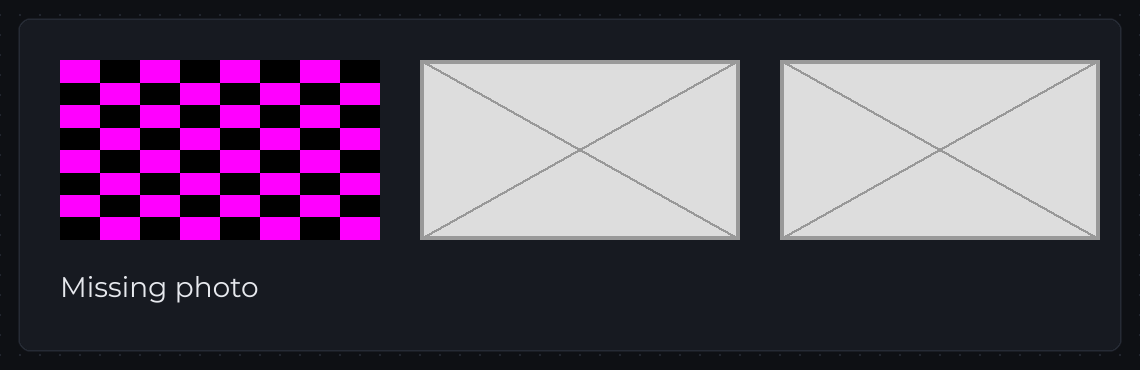
onError wrote the status.
Resource.blocking loads the image on the render thread, the first time it is drawn, so that it is on screen from its first frame:
ResourceNode.create(400, 40).resource(Resource.of("images/placeholder.png").blocking()).attach(card);Resource.generate starts the decoding in the background without waiting for a node to draw the resource, for example in the constructor of the UI, before it opens:
private final Resource background = Resource.of("images/placeholder.png");
public PreloadUI() { this.background.generate();}onLoad tells when that decoding ends, and the first node that draws the resource then shows it at once.
Give a set of images the same settings
Section titled “Give a set of images the same settings”Resource.of(...) starts every resource with linear sampling.
Images that share other settings, such as the sprites of a pixel-art game, come from one ResourceBuilder:
final ResourceBuilder pixelArt = ResourceBuilder.create().nearest().mipmap(false);ResourceNode.create(760, 40).resource(pixelArt.of("images/placeholder.png")).attach(card);ResourceBuilder.create starts with the settings of Resource.of(...); nearest(), linear(), mipmap(...) and textureCoords(...) each return a builder with that setting.
Each resource starts with a copy of the settings of its builder, and its own setters change that resource only; Resource.reset gives it back the settings of its builder.
Resources of every builder share their decoded content, which JOID keeps a while after its last use (Performance).
ResourceBuilder.cache gives a builder a cache of its own, such as a MemoryResourceCache, or null to make each resource decode its own copy.
Play animated images and videos
Section titled “Play animated images and videos”A ResourcePlayerNode plays a resource that moves: an animated image, or a video with its sound.
ResourcePlayerNode.create(40, 40).resource(Resource.of("images/animation.gif")).loop(true).<ResourcePlayerNode>onClick(event -> event.getNode().toggle()).attach(card);A player sizes itself and fits its image like a ResourceNode, with stretch(...).
It starts on its own (ResourcePlayerNode.autoplay), plays once (ResourcePlayerNode.loop) and at full volume (ResourcePlayerNode.volume, from 0F to 1F, where 1F is 100 %).
Here a video waits for the user, at half volume, and closes its UI when it ends:
final ResourcePlayerNode trailer = ResourcePlayerNode.create(40, 40, 640, 360).resource(Resource.of("videos/intro.mp4")).autoplay(false).volume(0.5F).onEnd(event -> JOID.close(this)).attach(card);RectNode.create(40, 440, 140, 50).color(TrailerUI.ACCENT).onClick(event -> trailer.toggle()).label(Text.create("Play", label)).attach(card);RectNode.create(200, 440, 140, 50).color(TrailerUI.ACCENT).onClick(event -> trailer.seek(5D)).label(Text.create("0:05", label)).attach(card);RectNode.create(360, 460, 320, 10).color(TrailerUI.ELEMENT).attach(card);RectNode.create(360, 460, 0, 10).color(TrailerUI.ACCENT).width(() -> trailer.getProgress() * 320D).attach(card);ResourcePlayerNode.play,ResourcePlayerNode.pause,ResourcePlayerNode.toggle,ResourcePlayerNode.stopandResourcePlayerNode.restartcontrol the playback, andResourcePlayerNode.seekjumps to a time in seconds from the start, paused if the player was stopped.- Called before the player first draws, these calls wait for it to start.
With
autoplay(false), the player waits paused on its first frame:isPaused()istrue. ResourcePlayerNode.isPlaying,ResourcePlayerNode.isPaused,ResourcePlayerNode.getDuration(seconds) andResourcePlayerNode.getProgress(on a scale of 0 to 1) read the playback.ResourcePlayerNode.onPlay,ResourcePlayerNode.onPause,ResourcePlayerNode.onStopandResourcePlayerNode.onEndfollow it;onEndnever fires on a loop.ResourcePlayerNode.onProgressreceives aNodeProgressEvent, with the progress on a scale of 0 to 1 and the current time in seconds.
The guide Show a video shows a video playing under these controls, with a progress bar and a pause button. Each player has its own playback, created when it is attached: two players of one resource play independently. A player that leaves the tree stops and releases its playback; attached again, it starts from the beginning (Node lifecycle).
An animated image drawn by a ResourceNode plays too, as many times as the file asks, and every node that draws that resource shows the same frame.
Resource.getPlayback gives its IResourcePlayback, with the same controls, or null for a still image.
Control the sound of a video
Section titled “Control the sound of a video”The sound of a video goes through the audio bridge of the backend, at the volume of its player.
ResourcePlayerNode.audioGroup tags it, so that one setting changes every sound of a group.
With JOID’s backends, AlAudioBridge.groupVolume sets the volume of a group, on a scale of 0 to 1:
ResourcePlayerNode.create(0, 0, 640, 360).resource(intro).audioGroup("music").attach(this);BridgeHandler.AUDIO.getBridge(AlAudioBridge.class).groupVolume("music", 0.4F);For a video placed in a 3D scene of your application, ResourcePlayerNode.location places the sound at a Point of that scene.
It plays at full volume up to ResourcePlayerNode.referenceDistance from the listener (5 by default), then fades out until ResourcePlayerNode.maxDistance (50 by default).
The listener stands at the origin until VideoAudioPlayer.audioListenerPosition gives it an AudioListenerPosition, which JOID asks for the position of the listener every frame.
Play videos on every machine
Section titled “Play videos on every machine”JOID decodes videos with FFmpeg, whose native libraries depend on the system. When they are not on the classpath, the first video downloads those of the running system from Maven Central, checks their SHA-256 and keeps them in the cache folder. Videos play on Windows (x64), macOS (Intel and Apple silicon) and Linux (x64).
VideoNatives.install starts that download early and returns a CompletableFuture, for example behind a loading screen.
VideoNatives.repository takes the URL of another Maven repository, such as a mirror of your company.
When the natives cannot be found, downloaded or checked, the video fails with a VideoNativesException that says why, and onError receives it.
Play videos without network access shows how to put the natives on the classpath instead.
Show a texture of your application
Section titled “Show a texture of your application”An application that renders with its own OpenGL or Vulkan code can show the result in a node.
Wrap the texture in a borrowed texture of the backend, then give it to Resource.of(...):
final Resource minimap = Resource.of(GlBorrowedTexture.of(minimapTexture));return ResourceNode.create(1500, 60, 360, 360).resource(minimap);| Backend | Borrowed texture | It takes |
|---|---|---|
| LWJGL 2, LWJGL 3 | GlBorrowedTexture | The name of an OpenGL texture, or an IntSupplier that returns it |
| Vulkan | VulkanBorrowedTexture | A VulkanImage, or a Supplier that returns one |
JOID draws the texture where it is: it never copies it, never writes into it and never deletes it. It calls a supplier each time it draws, so the node follows your renderer when it replaces its texture, after a resize for example.
The size of the resource is the size of the texture, read at each draw.
A texture that does not exist when the resource first loads makes the resource fail.
A Vulkan image must be on the device of the backend, in the SHADER_READ_ONLY_OPTIMAL layout whenever JOID draws it.
Supported formats
Section titled “Supported formats”JOID recognizes a file by its first bytes, never by its name:
| Kind | Formats | Node |
|---|---|---|
| Still images | PNG, JPEG, BMP, WebP | ResourceNode |
| Vector images | SVG, drawn again at the size it is shown | ResourceNode |
| Animated images | GIF, animated PNG (APNG), animated WebP | ResourcePlayerNode |
| Videos, with their sound | MP4 and MOV, WebM and MKV, AVI | ResourcePlayerNode |
Sound plays only as the track of a video: an audio file alone is not a resource. HEIF and AVIF images are recognized but not decoded: the resource fails with an error that says so. To read another format, write your own decoder (Custom formats). To draw a resource in your own drawing code, see Draw an image.
- A
Resourcecomes fromResource.of(...): a classpath path, a file, a URL, a stream, aBufferedImageor a borrowed texture. - A
ResourceNodedraws it at its natural size, or keeps its proportions when you give one side. stretchfits it (STRETCH,CONTAIN,COVER),colortints it,textureCoordscrops it.- A resource loads when first drawn, in the background unless
blocking();onLoadandonErrorrun on the render thread. - A
ResourceBuildergives its settings to every resource it creates. - A
ResourcePlayerNodeplays animated images and videos withplay,pause,toggle,seek,loopandvolume, and has its own playback. - Videos need the FFmpeg natives, downloaded on the first video when they are not on the classpath.
- JOID reads formats by their content; the table of supported formats is the full list.
Try it
Section titled “Try it”A logo that lights up. Show the placeholder image in grey, turning to its own colors under the mouse.
Solution
color tints the image and hoveredColor gives the tint under the mouse; white keeps the image as it is.
final Resource logo = Resource.of("images/placeholder.png");
ResourceNode.create(100, 100).resource(logo).color(LogoUI.MUTED).hoveredColor(Color.WHITE).attach(this);A looping video behind the menu. Play a silent video in a loop behind a whole menu, filling the 1920 × 1080 canvas without distortion.
Solution
COVER keeps the proportions and cuts what goes beyond the canvas; a volume of 0F silences the video.
ResourcePlayerNode.create(0, 0, 1920, 1080).resource(Resource.of("videos/intro.mp4")).loop(true).volume(0F).stretch(StretchType.COVER).attach(this);Full file: MenuBackgroundUI.java
Attach it first, so that the nodes of the menu draw above it.