
The design canvas
A window can be small or large, wide or tall, and you do not want to compute every position again for each of them. JOID gives every UI a fixed canvas of 1920 × 1080 design pixels and fits it to the window. This page shows how the canvas fits, and how to use the space that the window shows around it.
You will learn
- How the canvas fits a window of any shape
- How to reach the edges of the window
- How to pin a UI to a side or a corner
- How the interface scale and the zoom change the size of a UI
- How to convert between screen pixels and design pixels
Place nodes on the canvas
Section titled “Place nodes on the canvas”Every position and size in JOID is in design pixels, on a canvas 1920 wide and 1080 high. JOID scales the whole canvas to the window, by the same factor on both axes, so that the canvas fits entirely:
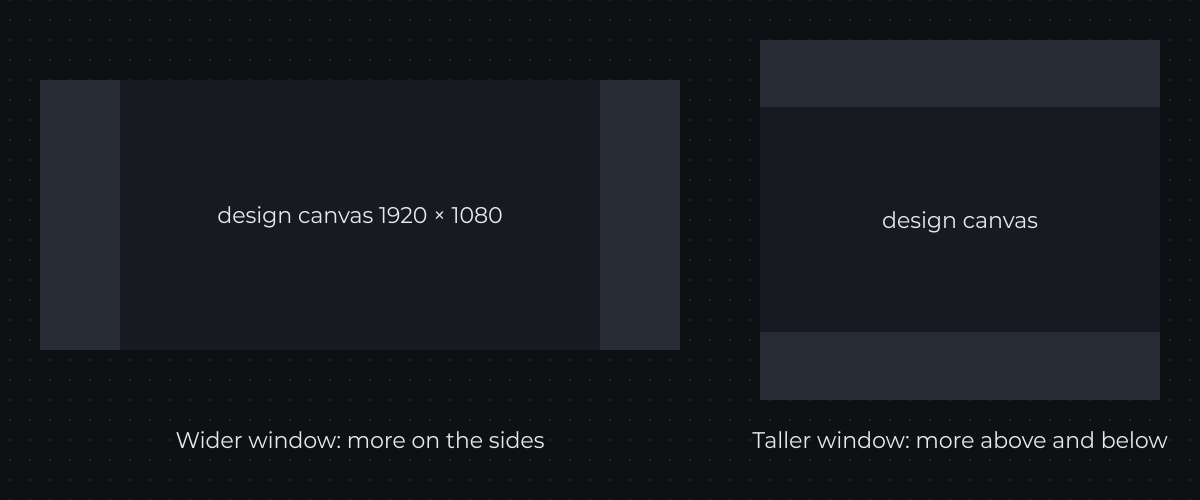
A node at (960, 540) is in the middle of the canvas, whatever the size of the window. On a 16:9 window, the canvas fills it exactly. On a wider window, the window shows more space on the left and on the right of the canvas; on a taller one, above and below. That space is still part of the UI: nodes can be drawn there, at negative positions or beyond 1920 and 1080.
The window itself counts in screen pixels: Convert between the window and the UI shows how a position passes from one unit to the other.
Reach the edges of the window
Section titled “Reach the edges of the window”The view is the part of the canvas plane that the window shows: UI.getViewX, UI.getViewY, UI.getViewWidth and UI.getViewHeight, in design pixels.
A node that follows the view covers the whole window:
RectNode.create(0, 0, 0, 0).color(EdgesUI.ELEMENT).x(() -> super.getViewX()).y(() -> super.getViewY()).width(() -> super.getViewWidth()).height(() -> super.getViewHeight()).attach(this);On a wide window, getViewX() is negative and getViewWidth() is more than 1920.
The nodes placed on the canvas, here a darker rectangle of its size and a blue card, stay where they are:
RectNode.create(0, 0, 1920, 1080).color(EdgesUI.SURFACE).attach(this);
RectNode.create(660, 340, 600, 400).color(EdgesUI.ACCENT).attach(this);The nodes that follow the view reach the edges:
RectNode.create(0, 0, 0, 120).color(EdgesUI.MUTED).x(() -> super.getViewX()).y(() -> super.getViewY()).width(() -> super.getViewWidth()).attach(this);
RectNode.create(0, 0, 80, 80).color(EdgesUI.ACCENT).x(() -> super.getViewX() + super.getViewWidth() - 100D).y(() -> super.getViewY() + 20D).attach(this);getViewX() and the other getters of the UI return a value that JOID does not follow, so these nodes take lambdas, which read the view again on every frame and follow a resize.
Signals explains what JOID follows.
Pin a UI to a side or a corner
Section titled “Pin a UI to a side or a corner”By default, the canvas sits in the middle of the window.
anchorX and anchorY of UIData pin it to a side or a corner instead:
@UIData(anchorX = Align.END, anchorY = Align.START)public class MinimapUI extends UI {
  private static final Color SURFACE = new Color(23, 26, 33).lock();  private static final Color ACCENT  = new Color(91, 140, 255).lock();
  @Override  public void init() {    RectNode    .create(1560, 40, 320, 320)    .color(MinimapUI.SURFACE)    .body(map -> CircleNode.create(140, 140, 40).color(MinimapUI.ACCENT).attach(map))    .attach(this);  }
}With Align, START pins the canvas to the left or the top, CENTER keeps it in the middle, and END pins it to the right or the bottom.
The anchor is also the point that stays in place when the UI is scaled or zoomed.
Follow the interface scale
Section titled “Follow the interface scale”The interface scale is a factor that the UI bridge applies on top of the fit, to make every UI larger or smaller, such as a scale option of the application that hosts JOID. The default window UI bridge gives 1; a UI bridge of your own gives another value (Embedding JOID).
UIDataScale tells how a UI follows it:
@UIData(anchorX = Align.END)@UIDataScale(limited = true, limit = 1.5D)public class GaugeUI extends UI {GaugeUI stops at 1.5, while the UI without @UIDataScale reaches 2.
- By default, the UI follows the interface scale.
limited = truefollows it up tolimit: here, a scale of 2 draws the UI at 1.5.active = falseignores it: the UI keeps the size of the fit.
Zoom a UI
Section titled “Zoom a UI”The zoom makes a UI smaller around its anchor, on top of the fit and the interface scale:
super.zoom(0.8D);
RectNode.create(660, 290, 600, 500).color(ZoomUI.SURFACE).effect(RoundedNodeEffect.create(12F)).effect(BorderNodeEffect.create(ZoomUI.ELEMENT, 1.5F)).body(card -> { TextNode .create(300, 150) .text(Text.create(() -> Math.round(super.getZoom() * 100D) + " %", info)) .anchor(Align.CENTER) .attach(card); RectNode .create(60, 300, 220, 150) .color(ZoomUI.ACCENT) .label(Text.create("-", label)) .onClick(event -> super.zoomBy(-0.1D)) .attach(card); RectNode .create(320, 300, 220, 150) .color(ZoomUI.ACCENT) .label(Text.create("+", label)) .onClick(event -> super.zoomBy(0.1D)) .attach(card);}).attach(this);0.8D, the whole UI is drawn at 80 % of its size, around the center of the window.
UI.getZoom reads the zoom shown; 1D is the size of the fit.
The zoom shown stays between 0.1D and 1D; with an interface scale below 1D, it can rise to 1 / scale, which draws the UI at the size of the fit.
UI.zoom(double)sets the zoom, like any setter;UI.zoom(Signal)ties it to a signal, both ways. A value beyond the bounds stays asked for:zoom(1.5D)shows1Duntil the interface scale allows more.UI.zoomToandUI.zoomBychange it the way the user does, within the bounds.- In dev mode, keys and the mouse wheel zoom the UI unless
@UIData(zoomable = false); an application that lets the user zoom gives its own controls, which callzoomToorzoomBy.
A change by the user, zoomTo or zoomBy asks the UI.beforeZoom listeners first, then tells the UI.onZoom listeners:
super.beforeZoom(event -> { if (event.getValue() < 0.5D) { event.cancel(); }});Here the zoom never goes below 0.5D: the listener cancels any change below it.
Convert between the window and the UI
Section titled “Convert between the window and the UI”Your nodes are placed in design pixels, while the window, the mouse of the system and any drawing done outside JOID count in screen pixels.
UI.getView returns the UIView of the UI, which converts from one to the other through three spaces:
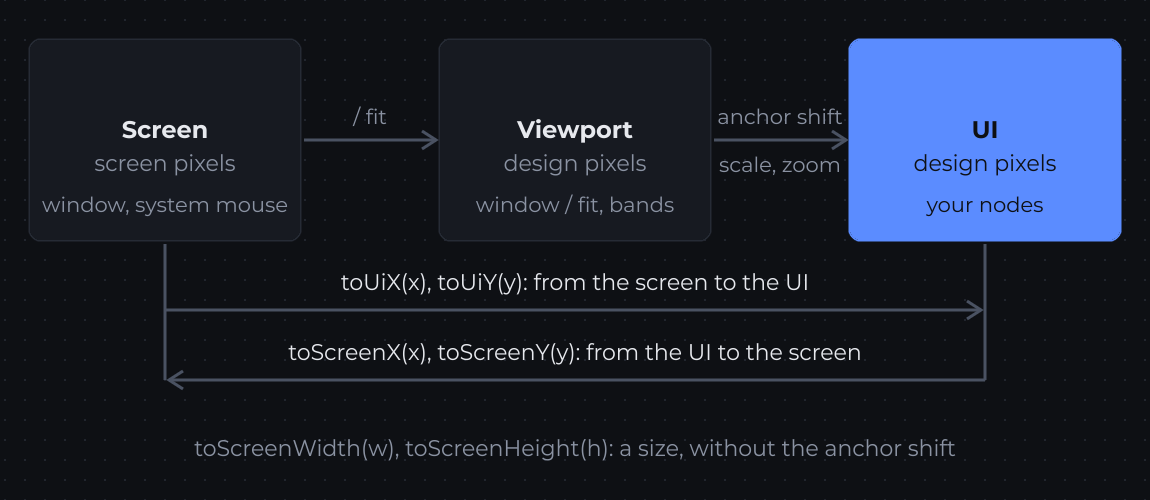
- Screen: the pixels of the window, whose size
UI.getWindowWidthandUI.getWindowHeightreturn. - Viewport: the window measured in design pixels.
The fit is the factor that makes the canvas fit, the smaller of
width / 1920andheight / 1080; the window divided by the fit is at least 1920 × 1080, and what exceeds the canvas forms the bands (UIView.getViewportWidth,UIView.getViewportHeight). - UI: the design pixels of your code. The canvas runs from (0, 0) to (1920, 1080); the anchor shifts it inside the viewport, and the interface scale and the zoom scale it around the anchor.
The view converts both ways, and each conversion undoes the other: toUiX(toScreenX(x)) gives x back.
| You want to | Use |
|---|---|
| Bring a position of the system, in screen pixels, into the UI | UIView.toUiX, UIView.toUiY |
| Draw outside JOID at the place of a node | UIView.toScreenX, UIView.toScreenY for its position, UIView.toScreenWidth, UIView.toScreenHeight for its size: they never apply the shift of the anchor |
The getters of the UI read the window through the view: UI.getMouseX is toUiX of the mouse, getViewX() is toUiX(0), and getViewWidth() is the width of the window in design pixels, after the interface scale and the zoom.
The same point, (1560, 300), on several windows:
| Window | toScreenX/Y(1560, 300) | getViewX(), getViewWidth() |
|---|---|---|
| 1920 × 1080 | (1560, 300) | 0, 1920 |
| 2560 × 1080 (21:9) | (1880, 300) | -320, 2560 |
2560 × 1080, anchorX = Align.END | (2200, 300) | -640, 2560 |
| 3840 × 2160 (4K) | (3120, 600) | 0, 1920 |
1920 × 1080, zoom 0.5D | (1260, 420) | -960, 3840 |
| 1920 × 1080, interface scale 1.5 | (1860, 180) | 320, 1280 |
- A wider window adds bands. With the default anchor, half of them go on each side, so the point moves right by half the extra width, 320; pinned to the right, the canvas moves by the whole band, 640.
- A 4K window doubles the fit: the same design position lands on twice as many screen pixels, and
toScreenWidth(320D)returns 640. - The zoom and the interface scale act around the anchor, here the center (960, 540): the point comes closer to it at a zoom of 0.5 and moves away at a scale of 1.5. The view grows when the UI shrinks and narrows when the UI grows.
How does toScreenX compute a position?
fit = min(windowWidth / 1920, windowHeight / 1080)viewportWidth = windowWidth / fitshift = (viewportWidth - 1920) * anchorX / 1920toScreenX(x) = (shift + anchorX + (x - anchorX) * scale) * fitanchorX is 0, 960 or 1920 for START, CENTER and END, and scale is the interface scale times the zoom.
On a 2560 × 1080 window with the default anchor and a zoom of 0.5D, the fit is 1, the viewport 2560 wide, the shift 320 and the scale 0.5, so toScreenX(1560D) is 320 + 960 + 600 × 0.5 = 1580.
toUiX runs the same steps backwards, and the vertical axis uses 1080 and anchorY.
- Every position and size is in design pixels on a 1920 × 1080 canvas that JOID fits to the window.
- A window of another shape shows more space on two sides; nodes can be drawn there.
- The view (
getViewX,getViewY,getViewWidth,getViewHeight) is what the window shows; follow it to reach the edges. getView()converts between screen pixels and design pixels across the viewport:toUiXandtoUiYfor a position of the window,toScreenXandtoScreenYfor a position of the UI,toScreenWidthandtoScreenHeightfor a size.anchorXandanchorYpin the canvas to a side or a corner, and set the point that stays in place when the UI scales.@UIDataScalechooses how a UI follows the interface scale of its UI bridge.- The zoom shrinks a UI around its anchor;
beforeZoomcan refuse a change.
Try it
Section titled “Try it”Center on the view. Place a 200 × 200 square in the middle of the window, not of the canvas.
Solution
The middle of the window is the middle of the view:
RectNode.create(0, 0, 200, 200).x(() -> super.getViewX() + super.getViewWidth() / 2D - 100D).y(() -> super.getViewY() + super.getViewHeight() / 2D - 100D).attach(this);With the default anchor, the middle of the view is also the middle of the canvas, (960, 540); with anchorX = Align.END on a wide window, it is not.
Predict a screen position.
On a 1280 × 720 window with the default anchor, where does toScreenX(1560D) land?
And on a 2560 × 720 window?
Solution
1280 × 720 is 16:9: the fit is 2/3 and there is no band, so 1560 × 2/3 = 1040. 2560 × 720 has the same fit, a viewport 3840 wide and a shift of 960, so (960 + 960 + 600) × 2/3 = 1680.
Reset the zoom.
Add a button to ZoomUI that brings the zoom back to 1.
Solution
zoomTo changes the zoom the way the user does, so the beforeZoom listener receives it:
.onClick(event -> super.zoomTo(1D))