
Drawing shapes and text
Nodes cover most interfaces, but some pictures are not a tree of rectangles: a gauge, a graph, a decoration made of lines.
DrawUtils draws shapes, lines and text directly, on every frame, from the places that JOID gives you.
Use it for free geometry; when a part needs layout, hover, effects or input, make it a node instead.
You will learn
- Where to put drawing code
- How to draw rectangles, circles, polygons and shadows
- How to draw lines and curves
- How to draw text at a point or in a box
- How to show what another renderer draws
Choose where to draw
Section titled “Choose where to draw”A layer is the shortest way to draw: a lambda that a node runs on every frame, after itself and its children.
ContainerNode.create(80, 80, 400, 200).layer((node, mouseX, mouseY) -> { DrawUtils.SHAPE.drawRoundedRect(0D, 0D, node.getWidth(), node.getHeight(), DrawingUI.SURFACE, 24F); DrawUtils.SHAPE.drawCircle(100D, 100D, DrawingUI.ACCENT, 50D); DrawUtils.SHAPE.drawRect(180D, 85D, 180D, 30D, DrawingUI.ELEMENT);}).attach(this);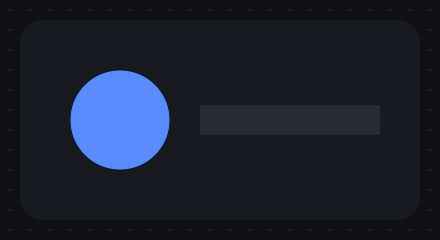
ContainerNode into a drawing, with no node for each shape.
Node.layer adds a NodeLayer, a lambda that receives the node and the position of the mouse.
A layer draws in the coordinates of its node: (0, 0) is the top-left corner of the node, and the mouse position is relative to that corner too, in design pixels.
A node runs its layers in the order you add them; layer(index, layer) inserts one at a position and clearLayers() removes them all.
You can draw from four places, all inside the draw of a node:
| Place | Coordinates | Use it for |
|---|---|---|
layer(...) | The node: (0, 0) is its corner. | Drawing over a node and its children, without writing a class. |
draw(...) of a custom node | The parent: the node sits at getX(), getY(). | A reusable node that draws itself, below its children. |
onDraw and onRender | The parent. | Drawing over one node from the outside (Node lifecycle). |
draw(node, body) of a custom effect | The parent. | A treatment that applies to any node. |
The frame lifecycle gives the exact order of these steps.
A drawing call outside a frame throws IllegalStateException: draw only from these places.
To draw only inside an area, clip your drawing with a mask (Effects).
Draw shapes
Section titled “Draw shapes”DrawUtils.SHAPE, a DrawShape, draws filled and outlined shapes.
Rectangles take a position and a size, circles a center and a radius, polygons their points:
ContainerNode.create(80, 340, 900, 200).layer((node, mouseX, mouseY) -> { DrawUtils.SHAPE.drawShadow(20D, 40D, 120D, 120D, DrawingUI.ACCENT, 16F, 20F); DrawUtils.SHAPE.drawRoundedRect(20D, 40D, 120D, 120D, DrawingUI.ELEMENT, 16F); DrawUtils.SHAPE.drawRoundedBorder(200D, 40D, 120D, 120D, DrawingUI.ACCENT, 16F, 6D); DrawUtils.SHAPE.drawBorder(380D, 40D, 120D, 120D, DrawingUI.ACCENT, 6D); DrawUtils.SHAPE.drawCircle(620D, 100D, DrawingUI.ACCENT, 60D); DrawUtils.SHAPE.drawPolygon(DrawingUI.MUTED, Point.of(740D, 160D), Point.of(880D, 160D), Point.of(810D, 40D));}).attach(this);
drawShadow comes before the shape it shadows.
| You want | Call |
|---|---|
| A filled rectangle | drawRect(x, y, width, height, color) |
| Rounded corners, on all corners or some of them | drawRoundedRect(x, y, width, height, color, radius), with four boolean, one per side (left, top, right, bottom): a corner is rounded when both of its sides are |
| A rounded outline | drawRoundedBorder(x, y, width, height, color, radius, stroke) |
| A square outline | drawBorder(x, y, width, height, color, stroke) |
| A soft shadow of a rounded box | drawShadow(x, y, width, height, color, radius, blur), before the shape it shadows |
| A disc | drawCircle(centerX, centerY, color, radius) |
| A filled polygon | drawPolygon(color, points...) |
Every value is in design pixels, and every color can be a gradient (Colors and styling); drawShadow takes the first color of a gradient.
Outlines draw their stroke inside the box, and a radius larger than half the box is reduced to it.
Rectangles, outlines and images snap their edges to the pixels of the screen, and a rectangle thinner than a pixel fades instead of disappearing; circles and polygons keep their exact geometry (Pixel alignment).
Each call sets the render state it needs.
Draw lines and curves
Section titled “Draw lines and curves”Lines and curves go through points, given as Point in design pixels:
ContainerNode.create(80, 600, 900, 200).layer((node, mouseX, mouseY) -> { DrawUtils.SHAPE.drawLine(DrawingUI.ACCENT, 4F, Point.of(20D, 160D), Point.of(120D, 40D), Point.of(220D, 160D)); DrawUtils.SHAPE.drawDashedLine(DrawingUI.ACCENT, 12, 4F, Point.of(300D, 160D), Point.of(520D, 40D)); final Point start = Point.of(600D, 160D); final Point end = Point.of(880D, 40D); DrawUtils.SHAPE.drawCurvedLine(DrawingUI.MUTED, 4F, start, Point.of(700D, 0D), Point.of(780D, 200D), end);}).attach(this);
drawLine(color, stroke, points...)joins the points with smooth edges.drawDashedLine(color, pattern, stroke, points...)alternates dashes and gaps ofpatterndesign pixels; a pattern of 0 or less throwsIllegalArgumentException.drawCurvedLine(color, stroke, start, control, end)draws a quadratic Bézier curve; with two control points,(start, startControl, endControl, end), a cubic one.strokeis in design pixels, like the thickness of a border, so a line grows with the UI; without a stroke, a line takes the line width of the render state, 1 design pixel unless you change it.drawShape(mode, color, points...)sends the points as they are, asLINES,LINE_STRIP,LINE_LOOP,TRIANGLES,QUADSor aPOLYGON(DrawMode).
Draw text
Section titled “Draw text”DrawUtils.TEXT, a DrawText, draws a string at a point, or a Text in a box:
final Text hint = Text.create("The game waits for you. Press Escape to come back to it.", body).alignX(Align.CENTER);ContainerNode.create(1040, 80, 600, 300).layer((node, mouseX, mouseY) -> { DrawUtils.TEXT.drawText(300D, 40D, "Paused", title, Align.CENTER, Align.START); DrawUtils.TEXT.drawText(100D, 120D, 400D, 160D, hint, TextMode.SPLIT);}).attach(this);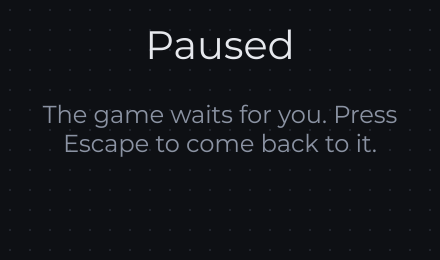
At a point, the alignments decide which side of the text sits on the point: START starts there, CENTER centers on it, END ends there.
In a box, the TextMode decides whether the text stays on one line or wraps, and the alignments of the Text place it in the box.
The TextInfo gives the font, the size and the color, as for a TextNode; Text explains the modes and the overflow.
Build a Text once, outside the layer: the layer runs on every frame.
Each call returns the FontBounds of what it drew.
getLines(width, text, info) splits a string into the lines that a box of that width holds, to measure a paragraph before you draw it.
Show what another renderer draws
Section titled “Show what another renderer draws”DrawUtils.RASTER, a DrawRaster, hands a rectangle of the UI to drawing code from outside JOID, such as the renderer of a game or a plotting library:
DrawUtils.RASTER.drawRaster(0D, 0D, 128D, 128D, (width, height) -> this.renderer.render(width, height));JOID gives your DrawableRaster a transparent target of width × height screen pixels, at most 4096 on each side, then draws the target into the rectangle, sharp at every scale.
The drawable speaks the graphics API of the backend: OpenGL calls on LWJGL 2 and LWJGL 3, where JOID saves its own OpenGL state around them, and Vulkan commands in the render pass of the target on Vulkan.
DrawUtilsdraws shapes, lines and text on every frame, in design pixels.- Draw in a layer, in the
drawof a custom node, inonDrawor in an effect, never outside a frame. - A layer draws in the coordinates of its node; the other places draw in the coordinates of the parent.
- Each call draws over the previous ones and sets the render state it needs.
- Every stroke, of lines as of outlines, and every position are in design pixels.
drawTextaligns text on a point, or places aTextin a box with aTextMode.DrawUtils.RASTERshows what another renderer draws, in the graphics API of the backend.
Try it
Section titled “Try it”A progress ring. Draw an accent disc with a smaller disc of the surface color on top, so that only a ring of 10 design pixels shows.
Solution
Draw the larger disc first; the second one covers its center:
DrawUtils.SHAPE.drawCircle(60D, 60D, DrawingUI.ACCENT, 60D);DrawUtils.SHAPE.drawCircle(60D, 60D, DrawingUI.SURFACE, 50D);A caption under a point.
Draw the word Peak centered horizontally under the point (400, 200) of a layer.
Solution
CENTER on the horizontal axis, START on the vertical one: the top of the text sits on the point.
DrawUtils.TEXT.drawText(400D, 200D, "Peak", info, Align.CENTER, Align.START);Follow the pointer. Draw a small disc under the mouse while the pointer is over a node.
Solution
The layer receives the mouse in the coordinates of the node, and isHovered() tells whether the pointer is on it:
.layer((node, mouseX, mouseY) -> { if (node.isHovered()) { DrawUtils.SHAPE.drawCircle(mouseX, mouseY, DrawingUI.ACCENT, 8D); }})