
Pixel alignment
You need this page only if you wonder why an edge, a line or a moving node lands where it does on the screen, or if you draw by hand and want the same sharpness.
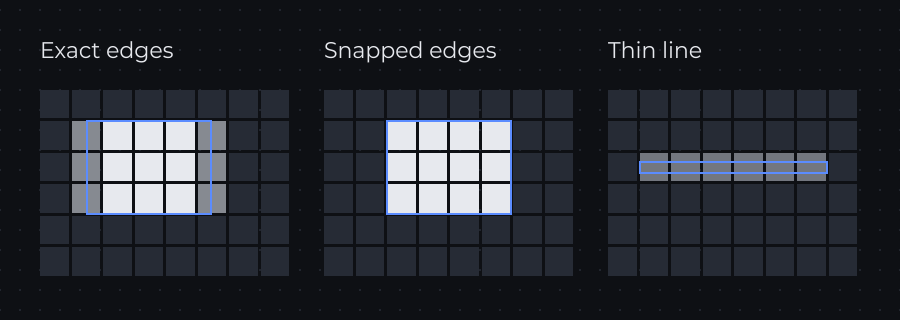
Why edges fall between pixels
Section titled “Why edges fall between pixels”You place nodes on the design canvas, and JOID scales the canvas to the window.
At any window width other than 1920 screen pixels, one design pixel covers a fraction of a screen pixel: 0.711 of one at 1366 pixels wide.
A rectangle at x = 100 then starts at screen pixel 71.1.
Drawn as is, the GPU paints the pixels that the rectangle covers partly at partial strength. Edges look soft, two touching rectangles show a faint seam, and a node that slides by fractions of a pixel shimmers as its edges change strength on every frame.
Edges snap to the nearest pixel
Section titled “Edges snap to the nearest pixel”Every rectangle that JOID draws (rectangles, rounded rectangles, images, borders) has each of its edges moved to the nearest pixel boundary of the screen. A rectangle never shrinks below one pixel.
The snapping works on the final position on the screen, computed from the exact position of the node and of all its parents. Two edges at the same design coordinate therefore land on the same pixel: a child that fills its parent covers it exactly, and two cells side by side in a flex container touch without a gap or an overlap.
Thin lines keep their weight
Section titled “Thin lines keep their weight”A rectangle less than 3 screen pixels thick on an axis is a line on that axis. JOID gives it a whole number of pixels, centered on its exact position, instead of snapping both edges, which could double or erase it.
A line thinner than one pixel is drawn one pixel thick, at an opacity equal to its real thickness: a line of 0.4 pixel is one row of pixels at 40 %. A border draws its strokes inside the box, each at least one pixel thick, so a border of 1 design pixel stays visible in the smallest window.
Moving nodes move by whole pixels
Section titled “Moving nodes move by whole pixels”A node whose position differs from the previous frame is moving, whatever moves it: a scroll, a drag, an animator, a layout or your own code. While it moves, JOID shifts it by a whole number of pixels from the place where it rested, so its edges, its text and its images keep their exact shape on every frame and move together.
When the node stops, JOID draws it at its exact position again. The node may move by less than a pixel once, and its resting place never depends on the path it took: a list reordered by drag ends with the same spacing as before. The offset of a scrolling container is itself a whole number of pixels, so its content does not jump when the scroll stops.
Text sits on the pixel grid
Section titled “Text sits on the pixel grid”The baseline of every line of text and the start of the line sit on pixel boundaries, and the height of the lowercase letters of an MSDF font is rounded to a whole number of pixels. Each letter keeps its exact advance: snapping letters one by one would make the spacing uneven.
Rotated and 3D drawing is not snapped
Section titled “Rotated and 3D drawing is not snapped”Under a rotation, a skew or a 3D projection, edges do not follow the pixel grid, and snapping them would distort the shape.
JOID draws them at their exact position instead, with edges smoothed over one screen pixel by the shaders, identical on every backend.
Circles, curves, polygons and lines are drawn the same way at any angle.
Your own geometry gets the same soft edge with EdgeSmoothing.
What it means for your code
Section titled “What it means for your code”- Place nodes in design pixels, fractional values included: JOID handles the screen. Rounding positions yourself only adds error, because the scale of the canvas is fractional.
- Draw rectangles and images with
DrawUtilsin custom nodes and layers: they snap like the built-in nodes (Drawing shapes and text). - Move nodes through their position, an animator or a transform effect: the motion is shifted to whole pixels for you.
- To copy a mockup pixel for pixel, read Copy a mockup.