
Build the main menu
In this lesson you move the title to the top-left corner and add the three buttons of the menu: Play, Settings and Quit.
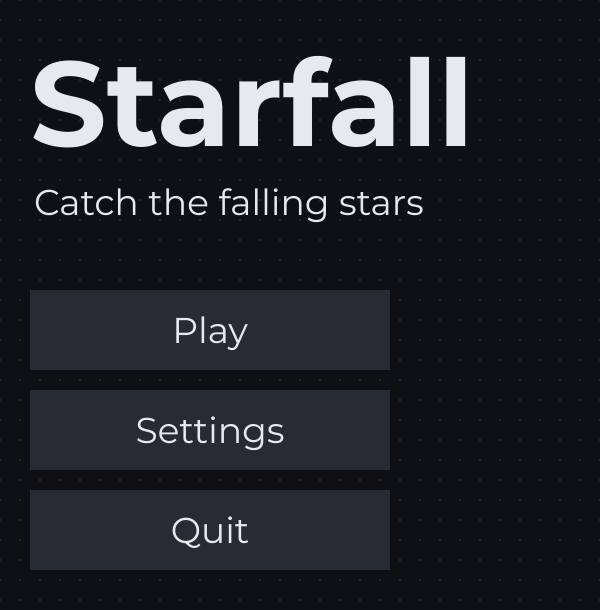
Starting point
Section titled “Starting point”The program of the previous lesson shows the title alone at the center. The menu has no button, and nothing tells the player what the game is.
1. Move the title and add a tagline
Section titled “1. Move the title and add a tagline”The tagline and the labels of the buttons need two more styles.
Declare them next to title, at the top of init():
final TextInfo tagline = TextInfo.create(Theme.FONT, 36F).color(Theme.TEXT);final TextInfo label = TextInfo.create(Theme.FONT, 36F).color(Theme.TEXT);Then replace the title with two texts at the top left of the canvas:
TextNode.create(160, 160).text(Text.create("Starfall", title)).attach(this);
TextNode.create(164, 310).text(Text.create("Catch the falling stars", tagline)).attach(this);Without an anchor, the position of a node is its top-left corner. You copy these coordinates from a 1920 × 1080 mockup: (160, 160) is 160 design pixels from the left edge and from the top edge, at any window size.
Run it. You should see the title at the top left, and the tagline under it.
2. Add the Play button
Section titled “2. Add the Play button”A button is a rectangle with a label. Add it after the tagline:
RectNode.create(160, 420, 360, 80).color(Theme.ELEMENT).label(Text.create("Play", label)).attach(this);RectNode.create(160, 420, 360, 80)creates a 360 × 80 rectangle with its top-left corner at (160, 420).color(...)fills it withELEMENT, the dark grey ofTheme.Node.labeldraws a text centered on the node, so the button needs no extra node for its text.
Run it. You should see a dark grey Play button under the tagline.
3. Add Settings and Quit
Section titled “3. Add Settings and Quit”Copy the button twice, 100 design pixels lower each time:
RectNode.create(160, 420, 360, 80).color(Theme.ELEMENT).label(Text.create("Play", label)).attach(this);
RectNode.create(160, 520, 360, 80).color(Theme.ELEMENT).label(Text.create("Settings", label)).attach(this);
RectNode.create(160, 620, 360, 80).color(Theme.ELEMENT).label(Text.create("Quit", label)).attach(this);Run it. You should see the title, the tagline and three dark grey buttons in a column on the left.
Each button is placed by hand: to insert a button between two others, you would move every button below it. The right half of the window is empty, and the buttons do nothing yet. The next lesson solves the first two problems.
The complete MenuUI.java
package com.example.starfall;
import dev.joid.lib.draw.text.Text;import dev.joid.lib.font.FontWeight;import dev.joid.lib.font.TextInfo;import dev.joid.lib.ui.core.UI;import dev.joid.lib.ui.node.impl.shape.RectNode;import dev.joid.lib.ui.node.impl.text.TextNode;
public class MenuUI extends UI {
  @Override  public void init() {    final TextInfo title = TextInfo.create(Theme.FONT, 120F).weight(FontWeight.BOLD).color(Theme.TEXT);    final TextInfo tagline = TextInfo.create(Theme.FONT, 36F).color(Theme.TEXT);    final TextInfo label = TextInfo.create(Theme.FONT, 36F).color(Theme.TEXT);
    TextNode.create(160, 160).text(Text.create("Starfall", title)).attach(this);
    TextNode.create(164, 310).text(Text.create("Catch the falling stars", tagline)).attach(this);
    RectNode    .create(160, 420, 360, 80)    .color(Theme.ELEMENT)    .label(Text.create("Play", label))    .attach(this);
    RectNode    .create(160, 520, 360, 80)    .color(Theme.ELEMENT)    .label(Text.create("Settings", label))    .attach(this);
    RectNode    .create(160, 620, 360, 80)    .color(Theme.ELEMENT)    .label(Text.create("Quit", label))    .attach(this);  }
}
Challenge
Section titled “Challenge”Add a fourth button, Credits, under Quit.
Solution
RectNode.create(160, 720, 360, 80).color(Theme.ELEMENT).label(Text.create("Credits", label)).attach(this);Quit ends at y = 700, so Credits starts at 720 to keep the gap of 20 design pixels. You computed that position yourself: the next lesson lets a layout compute it.
What you learned
Section titled “What you learned”- A node is created by a
create(...)factory, set up by chained setters, and attached to its parent. - The position of a node is its top-left corner, unless an anchor moves it (Position and size).
- A label centers a text on any node (Text).
- Coordinates come straight from a 1920 × 1080 mockup (The design canvas).